Managing Amazon orders efficiently is an important part of running a successful online selling business. Every day, thousands of Amazon sellers process customer orders, download shipping label PDFs, prepare packages, and arrange shipments. However, printing shipping labels in the correct format can sometimes become a time-consuming task, especially when PDF files contain multiple labels, extra spaces, unnecessary information, or different page layouts.
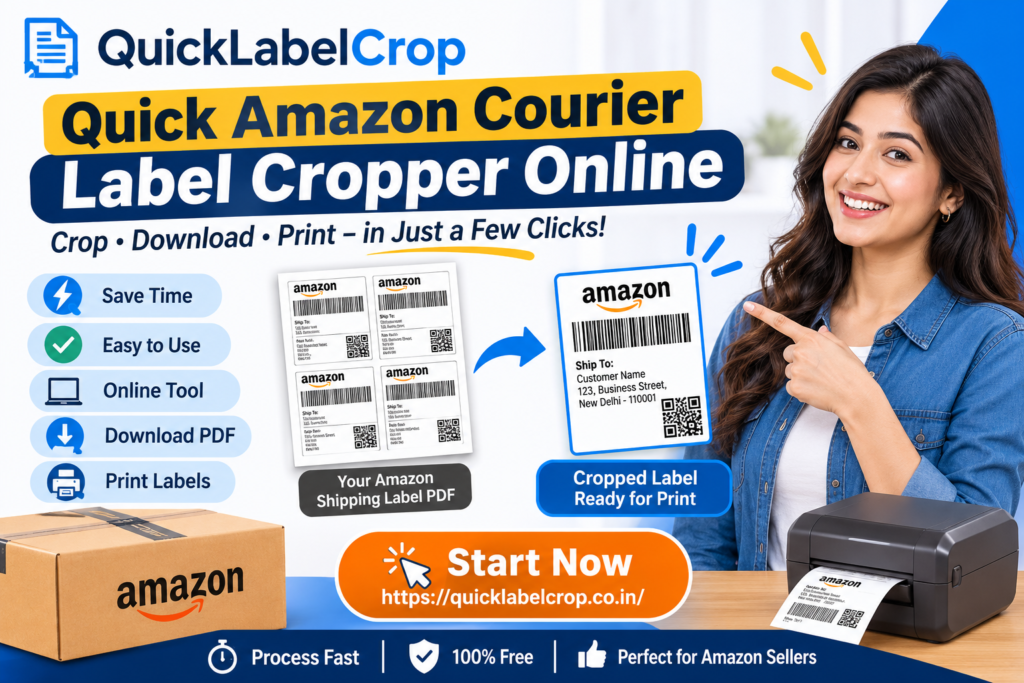
A Quick Amazon Courier Label Cropper Online makes this process easier by helping sellers crop and prepare shipping labels for printing. Instead of manually editing every PDF page or adjusting the printer settings repeatedly, sellers can use an online label cropping tool to simplify their shipping workflow.
QuickLabelCrop is designed to make shipping label preparation simple, convenient, and efficient. Sellers can upload their shipping label PDF, configure the available cropping options, process the file, and download the cropped PDF for printing.
Whether you manage a small Amazon seller account or handle hundreds of orders every day, an online Amazon shipping label cropper can help save time and reduce repetitive work.
What Is an Amazon Courier Label Cropper Online?
An Amazon Courier Label Cropper Online is a web-based tool that helps Amazon sellers crop shipping labels from PDF documents. It allows users to prepare shipping labels in a more suitable format for printing without depending on complicated PDF editing software.
When sellers download shipping documents from Amazon Seller Central, the files may contain different layouts depending on the shipment, courier service, or available printing options. Sometimes, the label area does not match the paper size of a thermal printer.
This can create difficulties during the printing process.
An online shipping label cropper helps solve this problem by allowing sellers to process their PDF files and create cropped shipping label documents.
With QuickLabelCrop, sellers can follow a simple process:
- Open the QuickLabelCrop website.
- Upload the Amazon shipping label PDF.
- Configure the available cropping options.
- Start the cropping process.
- Download the processed PDF.
- Print the labels using a compatible printer.
The main purpose is to make shipping label preparation faster, easier, and more convenient for online sellers.
Why Do Amazon Sellers Need a Shipping Label Cropper?
Amazon sellers handle multiple activities while processing customer orders. These activities include order management, invoice preparation, product packaging, shipping label printing, and courier handover.
Printing shipping labels may seem like a small task, but it can take considerable time when sellers process many orders.
For example, imagine receiving 50, 100, or 200 orders in a single day. Downloading and preparing every shipping label manually can become repetitive and inconvenient.
A shipping label cropper helps simplify this process.
1. Saves Time During Order Processing
Manual PDF editing can take several steps. Sellers may need to open a PDF editor, adjust the page size, crop unnecessary spaces, and save the document again.
An online cropper helps reduce these repetitive activities by providing a dedicated workflow for shipping label preparation.
2. Makes Label Printing Easier
Thermal printers are commonly used by ecommerce sellers because they offer fast and convenient label printing.
However, the original PDF page layout may not always be suitable for the seller’s printing requirements.
A cropping tool helps prepare the label document for a more convenient printing workflow.
3. Reduces Manual PDF Editing
Not every seller has access to professional PDF editing software.
An online Amazon label cropper provides a simpler alternative for preparing shipping documents through a browser.
4. Supports Faster Packing Operations
Shipping labels are an important part of order fulfilment. Preparing labels quickly can help sellers organize their packing activities and reduce unnecessary delays.
5. Useful for Small and Large Businesses
Whether you receive five orders or hundreds of orders, having a simple label preparation process can make daily operations easier.
QuickLabelCrop – Your Online Amazon Shipping Label Crop Tool
QuickLabelCrop is an online shipping label cropping platform created to simplify PDF label preparation for ecommerce sellers.
Website: https://quicklabelcrop.co.in/
The platform provides a convenient way to upload shipping label PDFs, process documents, and download cropped files.
Instead of installing additional desktop software, sellers can access the tool through an internet browser.
QuickLabelCrop is useful for sellers who want a straightforward way to manage shipping label PDFs without spending extra time on manual editing.
Key Highlights of QuickLabelCrop
- Online shipping label cropping facility.
- Simple PDF upload process.
- Convenient cropping workflow.
- Browser-based access.
- Downloadable processed PDF files.
- Useful for ecommerce shipping operations.
- Designed to simplify shipping label preparation.
- Convenient for daily order processing.
Note: Available features, supported file sizes, page limits, and cropping options depend on the current website functionality.
How to Use Quick Amazon Courier Label Cropper Online
Using an online shipping label cropper is generally simple. You do not need advanced technical knowledge to prepare your shipping documents.
Follow these steps to crop your Amazon courier shipping labels using QuickLabelCrop.
Step 1: Open QuickLabelCrop in Your Browser
First, open your preferred web browser, such as Google Chrome, Microsoft Edge, or Firefox.
Visit the official website:
Once the website loads, navigate to the shipping label cropping tool.
You can access the platform from your computer without installing a separate desktop application.
Step 2: Upload Your Amazon Shipping Label PDF
After opening the tool, select the PDF upload option.
Choose the Amazon shipping label PDF file saved on your computer.
Make sure that you upload the correct document before starting the cropping process.
For a smoother experience, keep your downloaded shipping documents organized in a dedicated folder.
Step 3: Configure the Available Cropping Options
Once your PDF is uploaded, review the available cropping settings.
Depending on the tool’s supported options, you may be able to configure the label layout or cropping preferences.
Choose the appropriate settings according to your printing requirements.
Before proceeding, check that the selected options are suitable for your shipping label format.
Step 4: Start Cropping and Let the Tool Process Your PDF
After configuring the settings, start the cropping process.
The tool will process the uploaded document according to the selected options.
Wait until the processing is completed. Processing time may depend on the PDF size, number of pages, and your internet connection.
Avoid closing the browser while the file is being processed.
Step 5: Download Your Cropped Shipping Label PDF
Once processing is complete, download the generated PDF file.
Save it to your computer in an easily accessible location.
You can open the downloaded file and review the labels before printing.
Step 6: Print Your Shipping Labels
Open the processed PDF using your preferred PDF viewer.
Connect your thermal printer or another compatible printer.
Select the appropriate paper size and print settings according to your printer specifications.
Check the first printed label to ensure that the barcode, address, tracking information, and other important details are clearly visible.
Your shipping labels are now ready for use.
Important Features of an Amazon Courier Label Cropper
A good shipping label cropping solution should make daily shipping activities easier. Here are some useful features that sellers should look for when choosing an online label cropper.
Easy PDF Upload
A simple upload facility makes it easier to select shipping label documents directly from a computer.
Sellers should be able to upload the required PDF without following complicated instructions.
Convenient Label Cropping
The main purpose of a label cropper is to prepare shipping labels by removing unnecessary page areas.
This can make documents more convenient to print and manage.
Multiple Page Processing
Sellers who receive multiple orders may have shipping label PDFs containing several pages.
A suitable cropping workflow should make it convenient to process documents containing multiple labels, subject to the platform’s supported limits.
PDF Download Facility
After cropping, sellers need an easy way to download the processed file.
A downloadable PDF makes it convenient to save, review, and print shipping labels.
Browser-Based Access
Online tools are convenient because sellers can access them through an internet browser.
This reduces the need to install additional software for basic label preparation.
Simple User Interface
A clean and easy-to-understand interface helps new sellers use the tool without requiring technical knowledge.
Benefits of Using an Online Amazon Shipping Label Cropper
Using a dedicated label cropping tool can provide several advantages for ecommerce businesses.
1. Improve Daily Productivity
Time is valuable when managing an online business.
Instead of spending extra time adjusting PDF pages manually, sellers can use a dedicated cropping workflow.
This allows them to focus more on product packaging, inventory management, and customer orders.
2. Simplify the Printing Process
A properly prepared shipping label PDF can make printing easier.
Sellers can review their processed documents and select suitable printer settings before printing.
3. Reduce Repetitive Work
Repeatedly editing shipping labels manually can become frustrating.
An online cropper helps simplify the preparation process and reduce repetitive PDF editing activities.
4. Convenient for Home-Based Sellers
Many Amazon sellers operate their businesses from home.
They may not have access to expensive printing or document management software.
A browser-based tool offers a convenient option for basic shipping label preparation.
5. Useful for Growing Ecommerce Businesses
As a business grows, the number of daily orders may increase.
Having an organized shipping label workflow can help sellers manage increasing order volumes more efficiently.
Amazon Shipping Label Printing with 4×6 Thermal Printers
Thermal printers are popular among ecommerce sellers because they are designed for convenient label printing.
A 4×6 thermal printer uses a label measuring approximately 4 inches by 6 inches, which is widely used in shipping and logistics operations.
Many online sellers prefer thermal printers because they offer:
- Fast label printing.
- Convenient roll-based printing.
- No need for traditional ink cartridges.
- Compact desktop designs.
- Easy integration into packing workstations.
However, the original shipping label PDF must be compatible with the printer’s paper settings.
An Amazon courier label cropper can help prepare the PDF layout, but sellers should always verify the output before printing.
Tips for Printing Amazon Labels on a 4×6 Printer
- Select the correct printer before printing.
- Check the available paper size settings.
- Use the correct label dimensions.
- Avoid unnecessary scaling.
- Check barcode clarity.
- Ensure that the shipping address is fully visible.
- Print a sample label before processing a large batch.
These simple checks can help reduce printing mistakes.
Common Problems Faced by Amazon Sellers While Printing Shipping Labels
Shipping label printing can sometimes create difficulties. Understanding these problems can help sellers choose the right workflow.
Problem 1: Shipping Labels Have Extra White Space
Some PDF documents contain large margins or unnecessary blank areas.
This can affect how the label appears on the printed page.
Solution: Use an appropriate cropping tool to prepare the PDF layout before printing.
Problem 2: Labels Do Not Fit the Thermal Printer
The original PDF may have a different page size from the thermal printer’s supported label dimensions.
Solution: Review the available cropping options and select suitable printer settings.
Problem 3: Barcode Is Not Printing Clearly
A barcode that is too small, distorted, or partially cropped can create scanning difficulties.
Solution: Check the PDF preview, avoid excessive scaling, and make sure the complete barcode remains visible.
Problem 4: Too Much Time Is Spent Editing PDFs
Manually editing every shipping label can slow down daily order processing.
Solution: Use a dedicated online shipping label cropper to simplify repetitive PDF preparation.
Problem 5: Incorrect Printing Orientation
Labels may sometimes print horizontally or vertically in an unexpected direction.
Solution: Check the orientation settings in your PDF viewer and printer preferences before printing.
Who Can Use an Amazon Courier Label Cropper?
An online Amazon shipping label cropper can be useful for different types of ecommerce businesses.
Individual Amazon Sellers
Individual sellers who process a few orders daily can use an online tool to simplify their shipping label preparation.
Small Ecommerce Businesses
Small businesses often manage product packing, customer orders, and shipping operations with limited resources.
A simple cropping workflow can help reduce unnecessary manual work.
Amazon Wholesale Sellers
Wholesale sellers may handle several products and customer orders every day.
Preparing shipping documents efficiently can help organize their packing activities.
Amazon Private Label Sellers
Private label businesses manage their own branded products and shipping operations.
An online label preparation tool can be a useful addition to their daily workflow.
Ecommerce Packaging Teams
Businesses with dedicated packaging teams can use organized PDF preparation processes to support their shipping operations.
Manual PDF Cropping vs Online Shipping Label Cropper
Many sellers use traditional PDF editing software to prepare shipping labels. However, an online shipping label cropper can provide a more focused workflow.
| Comparison | Manual PDF Editing | Online Label Cropper |
|---|---|---|
| Setup | May require software | Browser-based access |
| Workflow | Multiple editing steps | Dedicated cropping workflow |
| Technical knowledge | May be required | Generally simple |
| PDF preparation | Manual adjustments | Tool-assisted processing |
| Accessibility | Depends on installed software | Access through a browser |
| Download | Save edited PDF | Download processed PDF |
The right choice depends on your business requirements and the features available in the selected tool.
Tips for Managing Amazon Shipping Labels Efficiently
Using a label cropper is one part of an organized shipping process. Sellers can also follow these practical tips to improve their daily operations.
Organize Downloaded PDF Files
Create separate folders for different dates or shipping batches.
For example:
- Amazon Orders – Monday
- Amazon Orders – Tuesday
- Amazon Orders – Wednesday
This makes it easier to locate previously downloaded shipping documents.
Verify Shipping Information
Before printing, confirm that the customer address, tracking details, and barcode are visible.
Never assume that a cropped document is correct without reviewing it.
Keep Your Printer Ready
Make sure your thermal printer has sufficient label rolls and is properly connected to your computer.
Regularly clean the printer head according to the manufacturer’s instructions.
Use Consistent Printing Settings
Save or use suitable printer settings for your regular label size.
This can help reduce repeated configuration work.
Review Labels Before Packing
Match the printed shipping label with the correct order and package before attaching it.
This simple step can help prevent shipping mistakes.
Why Choose QuickLabelCrop for Amazon Shipping Label Preparation?
QuickLabelCrop aims to make shipping label preparation more convenient for ecommerce sellers.
The platform provides an online workflow that allows users to upload PDF files, configure cropping options, process documents, and download the results.
For sellers who regularly handle shipping documents, having a dedicated online tool can make PDF preparation easier.
Simple Online Workflow
Access the website directly through your browser and use the available shipping label cropping facility.
Convenient for Daily Operations
Use the tool as part of your regular order processing and packing workflow.
No Complicated PDF Editing Knowledge Required
The platform is designed to provide a straightforward approach to shipping label preparation.
Useful for Ecommerce Sellers
Amazon sellers and other online merchants can benefit from an organized approach to managing their shipping label PDFs.
Accessible from Your Computer
Open the website using a compatible browser and process your shipping documents online.
Frequently Asked Questions About Amazon Courier Label Cropper Online
1. What is an Amazon Courier Label Cropper Online?
It is an online tool that helps Amazon sellers crop and prepare shipping label PDF documents for convenient printing.
2. How can I crop Amazon shipping labels online?
Open QuickLabelCrop, upload your Amazon shipping label PDF, configure the available cropping settings, start processing, and download the resulting PDF.
3. Is QuickLabelCrop available online?
Yes. You can visit https://quicklabelcrop.co.in/ through your web browser.
4. Do I need to install software to crop shipping labels?
A browser-based online cropping tool generally does not require a separate desktop installation. You need an internet connection and a compatible browser.
5. Can I use an Amazon label cropper with a thermal printer?
Yes, you can prepare shipping label PDFs for use with a compatible thermal printer. Select the correct paper size and verify the output before printing.
6. Can I print Amazon shipping labels on a 4×6 printer?
Yes, provided the shipping label PDF and printer settings are compatible with the 4×6 label format.
7. Can I crop multiple shipping labels together?
This depends on the tool’s supported PDF page limits and batch-processing features. Check the current QuickLabelCrop interface for available options.
8. Does cropping affect the barcode?
Cropping should preserve the complete barcode. Always review the processed PDF to ensure that no important barcode information has been removed or distorted.
9. Can beginners use an online shipping label cropper?
Yes. A simple browser-based interface makes it easier for beginners to upload, process, and download shipping label PDFs.
10. Is QuickLabelCrop useful for small Amazon sellers?
Yes. Small sellers can use an organized label preparation workflow to simplify their daily shipping activities.
11. Can I use the tool on a laptop or desktop?
Yes, you can access the website through a compatible browser on a laptop or desktop computer.
12. What should I check before printing a cropped label?
Check the shipping address, barcode, tracking information, label orientation, and printer paper size before printing.
Conclusion – Make Amazon Shipping Label Preparation Easier
Managing Amazon orders involves several important activities, and shipping label preparation is one of them. When sellers handle multiple orders every day, manually adjusting PDF documents can consume valuable time.
A Quick Amazon Courier Label Cropper Online provides a convenient way to prepare shipping label PDFs through a browser-based workflow.
With QuickLabelCrop, sellers can upload their shipping documents, configure available cropping options, process the PDF, and download the prepared file for printing.
Whether you are an individual Amazon seller, a wholesale business, a private label seller, or a growing ecommerce company, an organized shipping label preparation process can help make your daily operations more convenient.